

Does your organization use Playlab’s EU instance? Sign in at eu.playlab.ai instead of app.playlab.ai. The EU instance is available to enterprise customers. See Playlab in the EU for details.
Creating your Playlab account
Playlab access starts with an invitation to an organization or space, which you get from your school, district, or organization. The walkthrough below shows what to expect from invite email to landing in your organization.Already have a Playlab account? Just click Log in instead of signing up again. After you log in, click Accept Invitation to add your existing account to the new organization or space.
Find your invitation
Most invitations come by email. Some partners share an invite link that lets multiple people sign up at once.
Click the link, or go to the login page
An invite link takes you straight to the sign-up form. If you were given an invite code instead, go to the Playlab login page and click Click here if you have an invite code.If your organization uses single sign-on, choose its Continue with… button at the top of the login page. Email and password sign-in is below the OR divider.
Set up your account
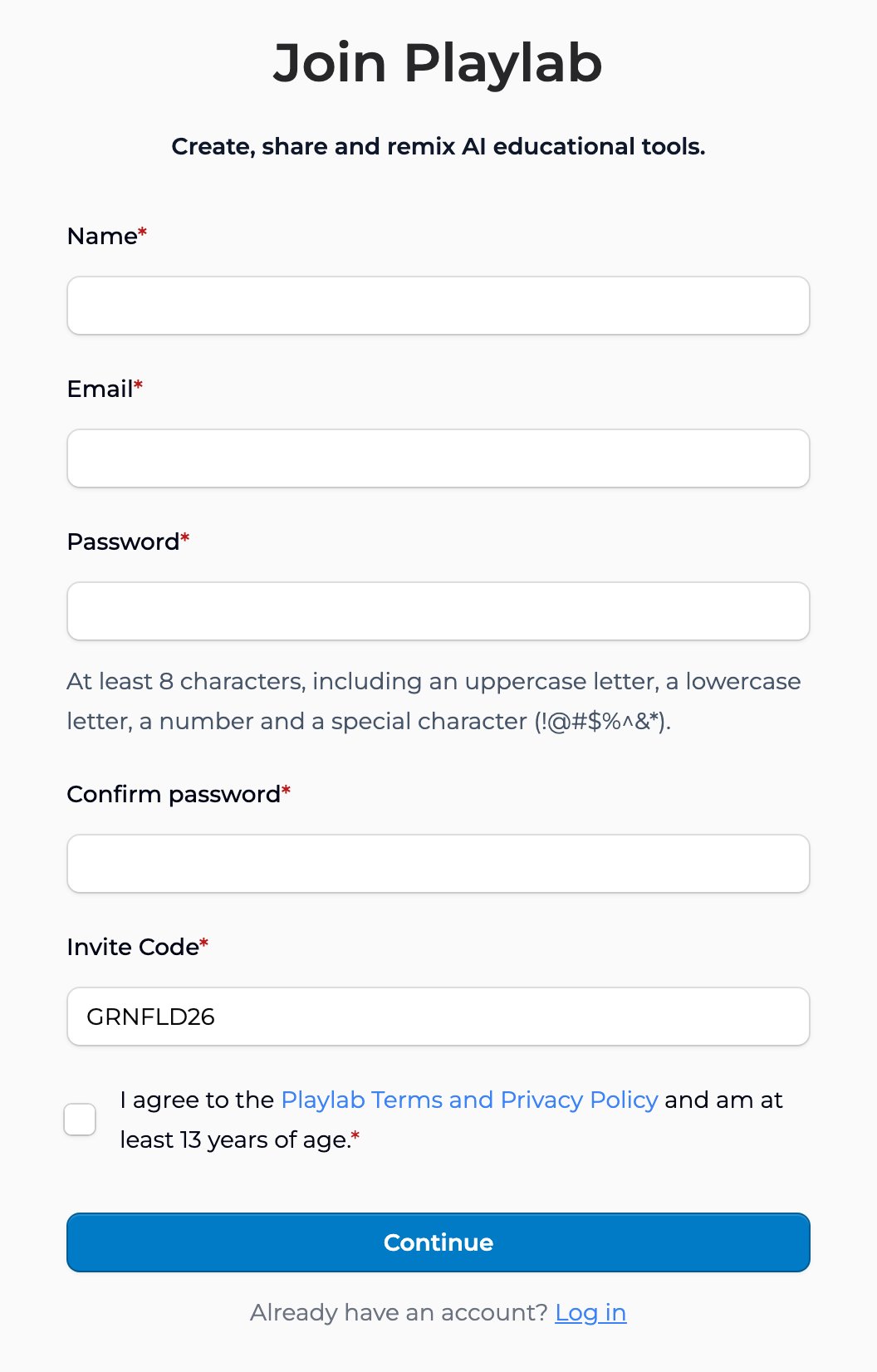
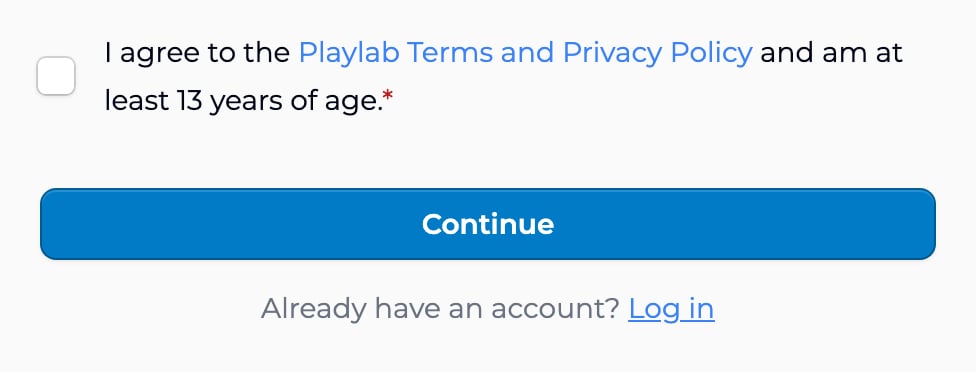
The form has two parts, and required fields are marked with an asterisk (*). Or use SSO, if your organization supports it.First, enter your Name, Email, and a Password, type the password again in Confirm password, and agree to the terms. If you came from an invite link, your Invite Code is already filled in. If your invitation came by email, your email address is filled in too and can’t be changed, since the invite only works for that address. Click Continue.You can also check I would like to receive the Playlab Newsletter. It’s optional.Next, choose your Role. If you pick Other, describe it in Your role. Then start typing your School / Organization and pick it from the suggestions. If yours isn’t listed, just leave what you typed. Parents skip this field. Click Create Account. Your account is ready right away; there’s no confirmation email.
Land in your organization
Playlab adds you to the organization or space your invitation is for and takes you there. If the invitation includes a space, you land in that space. Otherwise the organization opens at Insights if your role can see it, at Apps if not, or at Spaces if you only have access to spaces. See Navigating Playlab.
Where to start once you’re in
Getting Started
The recommended next stop. Walks you through the four containers and points to workflows by role.
Talk to your Learning Partner
Came in through a partner program? Your Learning Partner may have a specific path for you. Check with them or your org admin.
Onboarding programs
Playlab runs Intro to Playlab workshops and Office Hours regularly. These sessions help new users get hands-on with the platform.Intro to Playlab Workshop
75-minute live onboarding workshop with a Playlab facilitator. Best for first-time users.
Office Hours
Drop-in support sessions for one-on-one guidance on your Playlab implementation.
Key points
- Playlab access starts with an invitation from your school, district, or organization
- Sign up with email or SSO, depending on your organization
- Already have an account? Click Log in instead, then Accept Invitation
FAQ
I already have a Playlab account. Do I sign up again?
I already have a Playlab account. Do I sign up again?
No. Click Log in on the sign-up page instead. After you log in, click Accept Invitation to add your existing account to the organization or space.
I don't have an invitation. How do I get one?
I don't have an invitation. How do I get one?
Ask your school or organization to invite you. If your institution isn’t on Playlab yet, attend a free Intro to Playlab Workshop to get access, or have your institution email [email protected].
Can I use Playlab without joining an organization?
Can I use Playlab without joining an organization?
Not with an account. Creating an account takes an invitation to an organization or space, whether you sign up with email or SSO. Without an account, you can still use apps published as Public, which work for anyone with the link.
My organization uses SSO. How does that work?
My organization uses SSO. How does that work?
Choose your provider’s Continue with… button on the login page and sign in with your school or work account. If a Playlab account already uses that email, you’re signed in to it. If not, you need an email invitation sent to that address (or a district roster synced with Playlab): you’ll see You’re invited, accept the invitation, and click Create Account.
What information does Playlab collect during signup?
What information does Playlab collect during signup?
Name, email, password, role, and school or organization, plus whether you checked the newsletter box. If you choose Other as your role, we also ask what your role is. If you pick your school from the suggestions, Playlab also saves its city, state or region, and country. The form doesn’t ask for demographic information. See the Privacy Policy for details.
Can I sign up with a personal email if my org uses SSO?
Can I sign up with a personal email if my org uses SSO?
It depends on your invitation, not on an SSO setting. An email invitation only works for the address it was sent to. An invite link or code works with any email address.
How long does it take to activate an account?
How long does it take to activate an account?
It’s immediate. When you click Create Account, your account is created and you’re signed in right away, with no confirmation email to wait for. The same goes for SSO.
Last updated: 10-07-2026 Contact us at [email protected]